After Effects Bounce Animation Expression (Free Project File)

Adding a bounce effect to your animations can make them feel more natural and polished. Instead of spending time keyframing the bounce manually, you can use a simple expression to automate it. It’s a quick and clean way to give motion elements like text, icons, or UI transitions a more dynamic feel.
Below you’ll find the full bounce expression, a step-by-step guide to using it in After Effects, and explanations of the parameters you can customize. You can also download the ready-made After Effects project file by submitting your email.
The Bounce Expression Code
// Bounce Expression Code By KIRTAN FX

amp = 0.05;
freq = 2;
decay = 3;
time_max = 3;

n = 0;
if (numKeys > 0) {
  n = nearestKey(time).index;
  if (key(n).time > time) {
    n--;
  }
}

if (n == 0) {
  t = 0;
} else {
  t = time - key(n).time;
}

if (n > 0 && t < time_max) {
  v = velocityAtTime(key(n).time - thisComp.frameDuration);
  easeFactor = easeOut(t, 0, time_max, 1, 0);
  value + v * amp * Math.sin(freq * t * 2 * Math.PI) / Math.exp(decay * t) * easeFactor;
} else {
  value;
}
This expression automatically creates a bounce effect after a keyframe, based on the motion velocity. The result feels smooth and dynamic, without the need for extra animation layers or keyframes.
How to Use This Expression in After Effects
- Add keyframes to the property you want to animate (e.g. Position, Scale).
- Hold Alt (or Option on Mac) and click the stopwatch icon next to that property.
- Paste the expression code into the expression field.
- Preview your animation. The bounce will trigger after the last keyframe.
This works best for position, scale, and rotation properties.
Explanation of Key Parameters
amp = 0.05
Sets the strength of the bounce. Increase this value for a more dramatic bounce effect.freq = 2
Controls the speed of the bounce oscillation. Higher values result in faster, tighter bounces.decay = 3
Determines how quickly the bounce fades out. A higher value makes the bounce settle faster.
You can experiment with different combinations to create subtle or exaggerated bounce styles depending on the project.
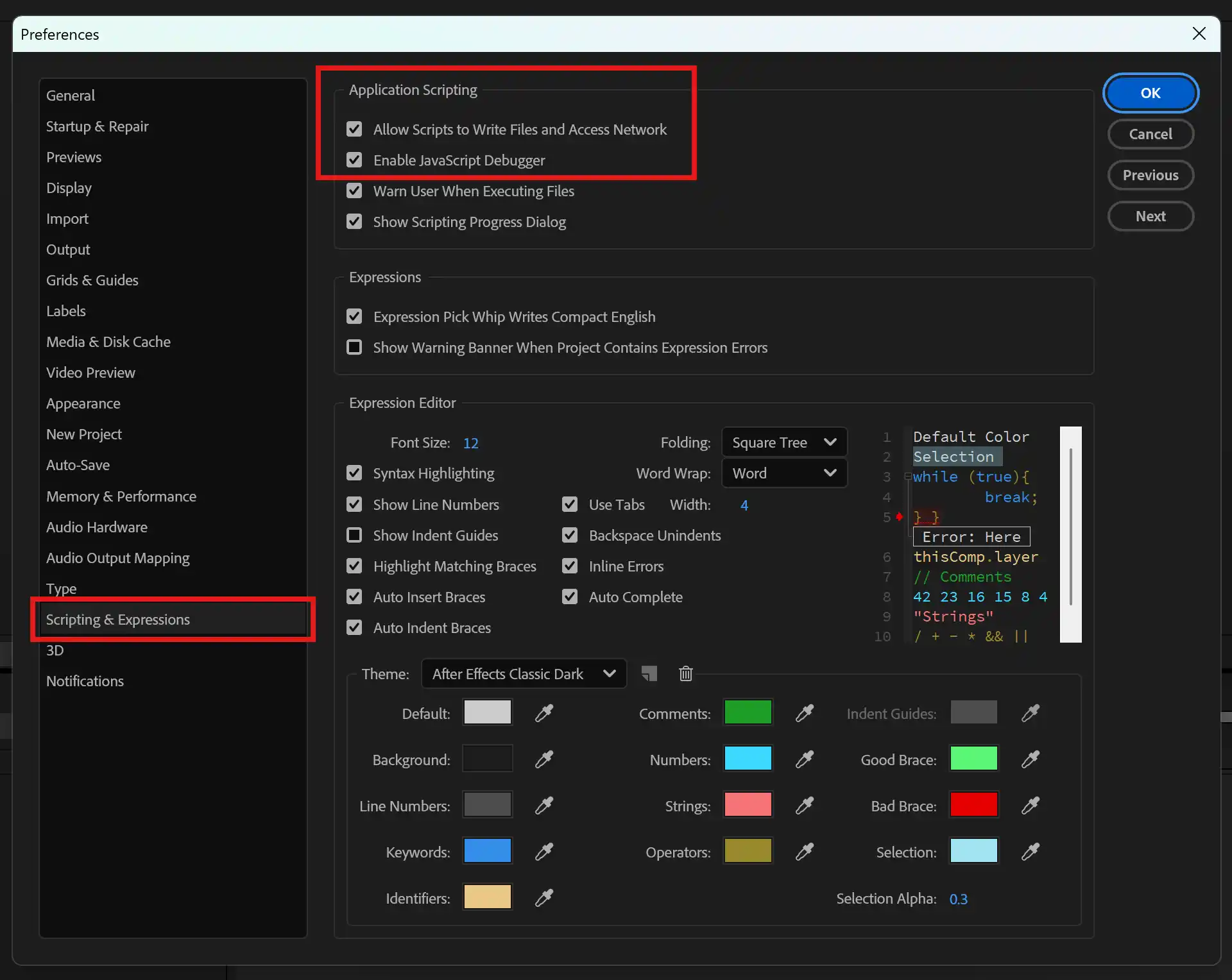
Required Settings in After Effects
To make sure this expression runs correctly, you need to enable two important options in After Effects:
Navigate to:
Preferences > Scripting & Expressions
Make sure both of the following are checked:
- Allow Scripts to Write Files and Access Network
- Enable JavaScript Debugger
These settings are necessary for functions like velocityAtTime() to work properly.
Here’s what it should look like:
Download the Free Project File
Want to see this in action? Download the ready-made After Effects project file that includes the bounce animation already applied.
Submit your email below to get the free file:
[Coming Soon]
Once you submit your email, you’ll receive the project file download link instantly in your inbox.
Stay tuned for more tutorials, free assets, and motion design tools here on KirtanFX.com. If you’re on Instagram, follow @kirtanfx for daily tips and effects breakdowns.
Thanks For Reading.